






How to upload accounting context from Directo to CostPocket?
For companies with Directo accounting software integration, CostPocket has the ability to add accounting fields to documents and reports with the automated posting functionality. In this tutorial, we will show you how to import the needed fields from Directo into CostPocket so that they can be conveniently added to documents and reports.
Download accounting data from Directo
Each accounting field's data needs to be extracted and uploaded separately starting with Finance Accounts.
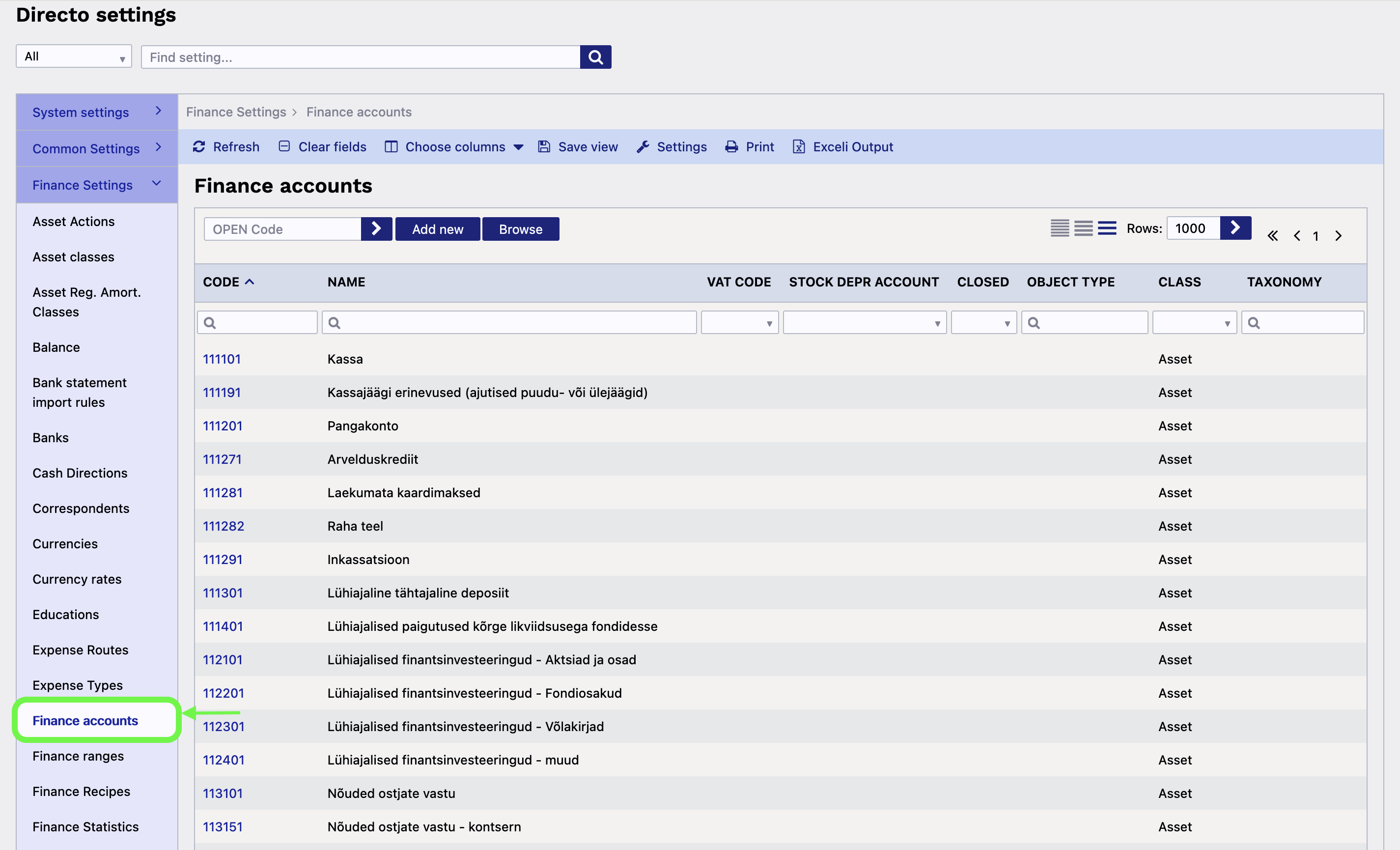
1. In Directo open Settings > Finance Settings > Finance accounts.
2. Write a big number into the Rows section to make sure all accounts will be included in the export file.
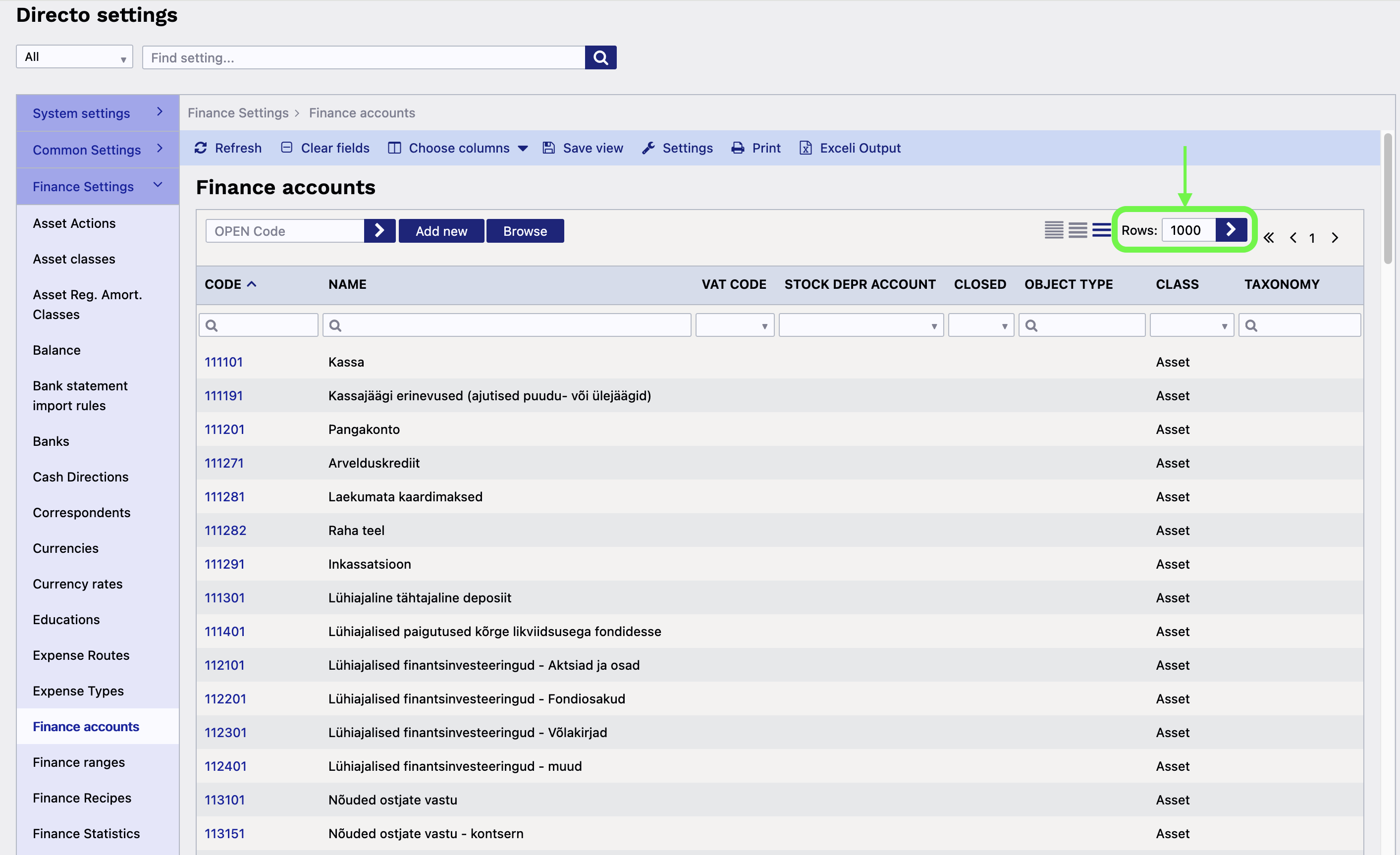
3. Download a XLSX file by clicking Exceli Output.

Upload the data to CostPocket
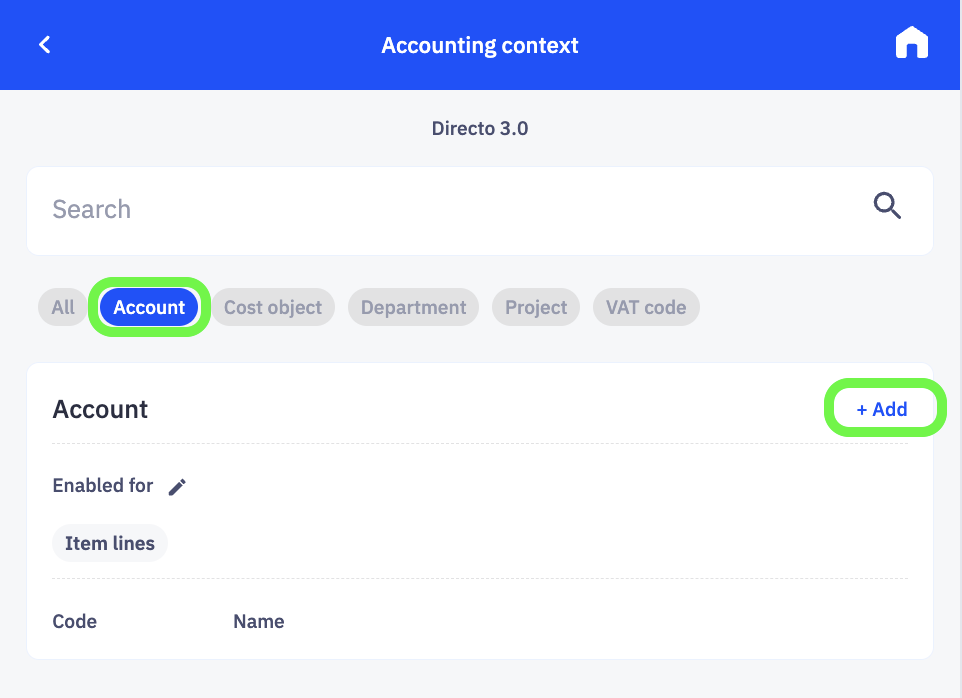
1. In CostPocket open Settings > Accounting configuration > Automated Posting > Accounting context.
2. Click on Account > + Add > UPLOAD XLSX.
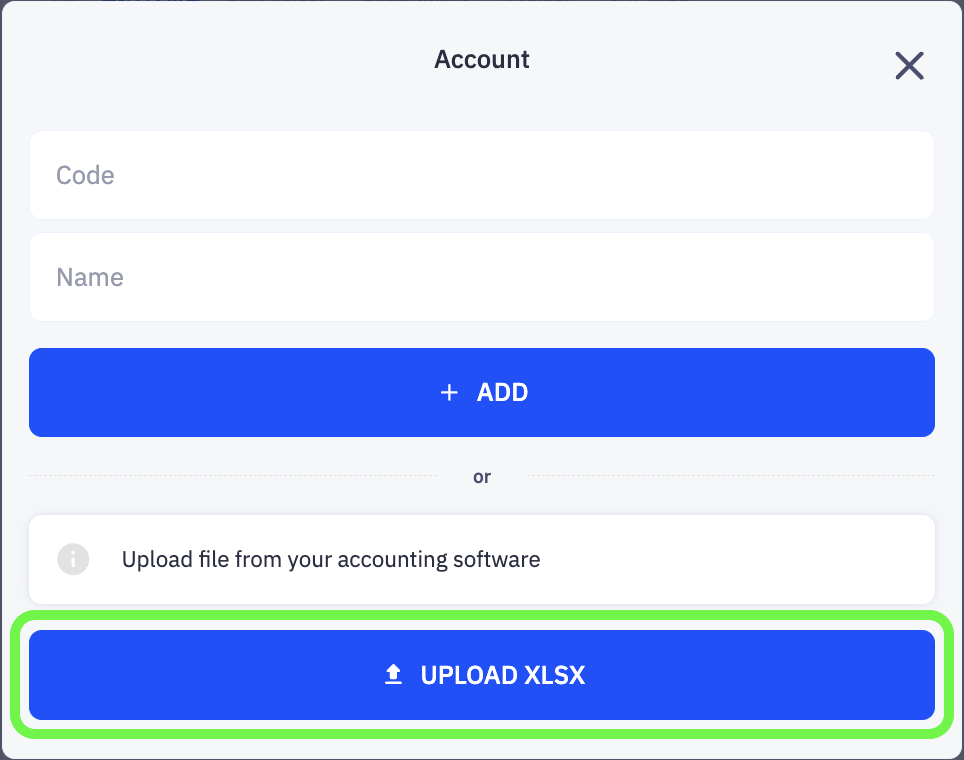
You have then successfully uploaded your accounts into CostPocket and these can now be added to each document.
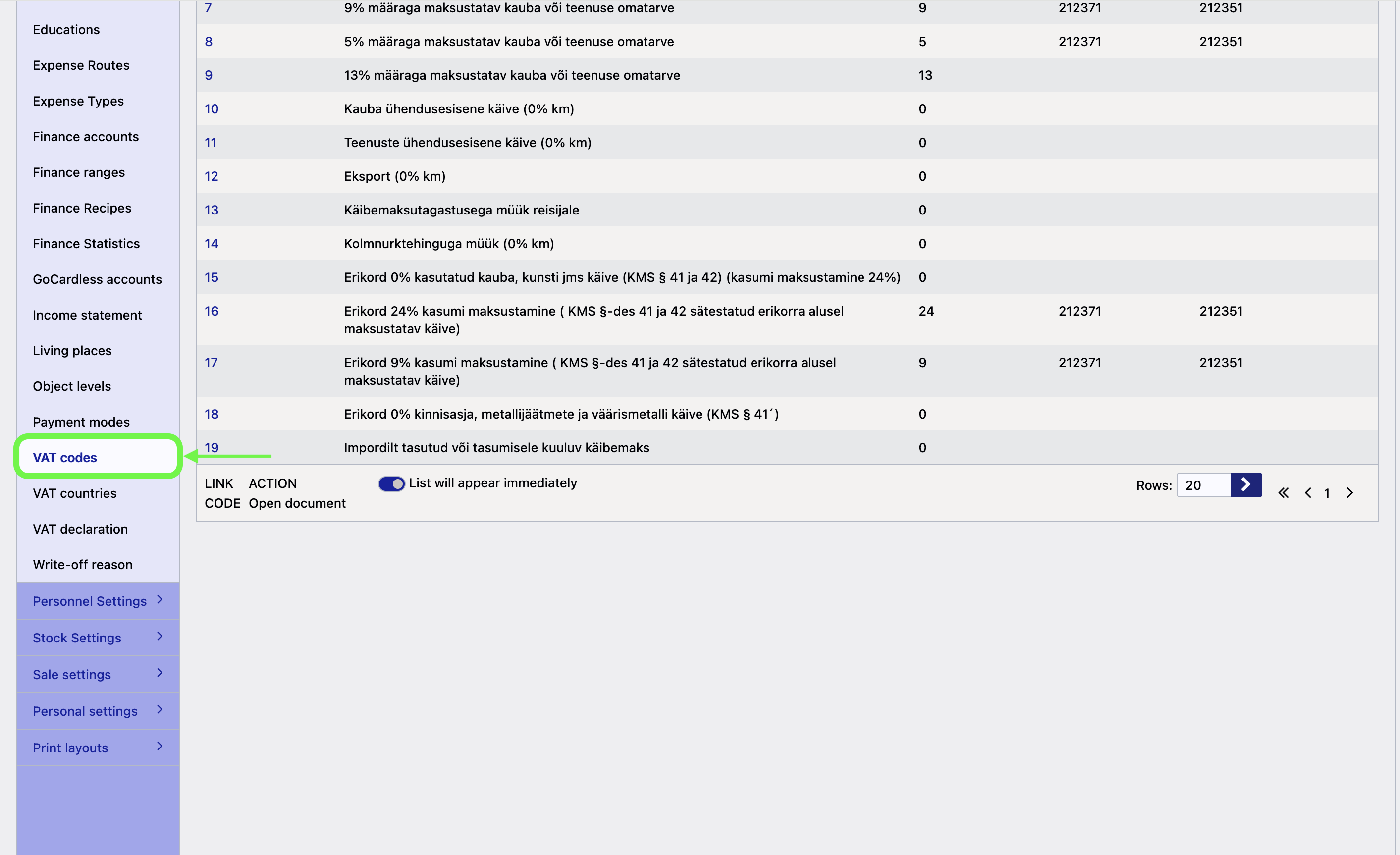
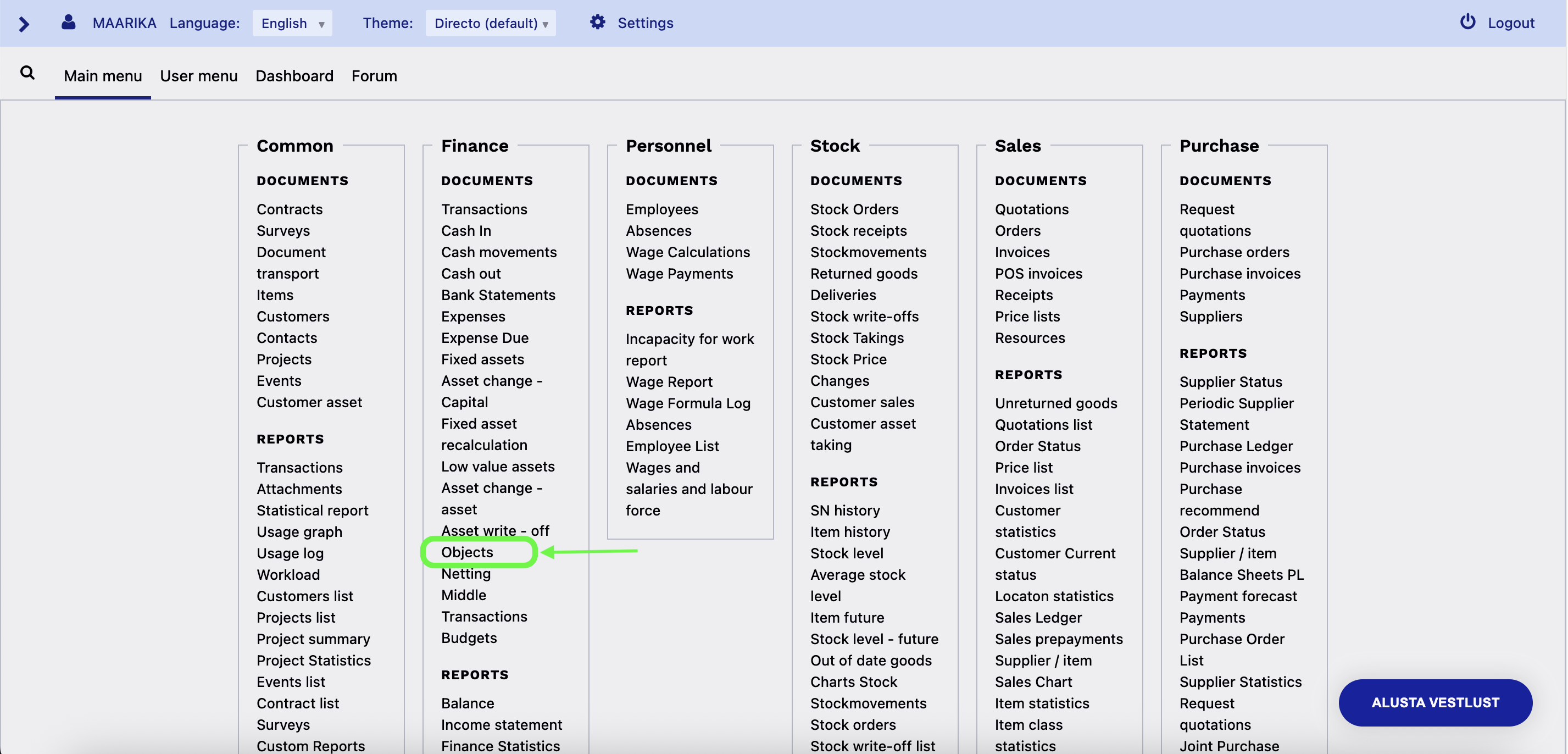
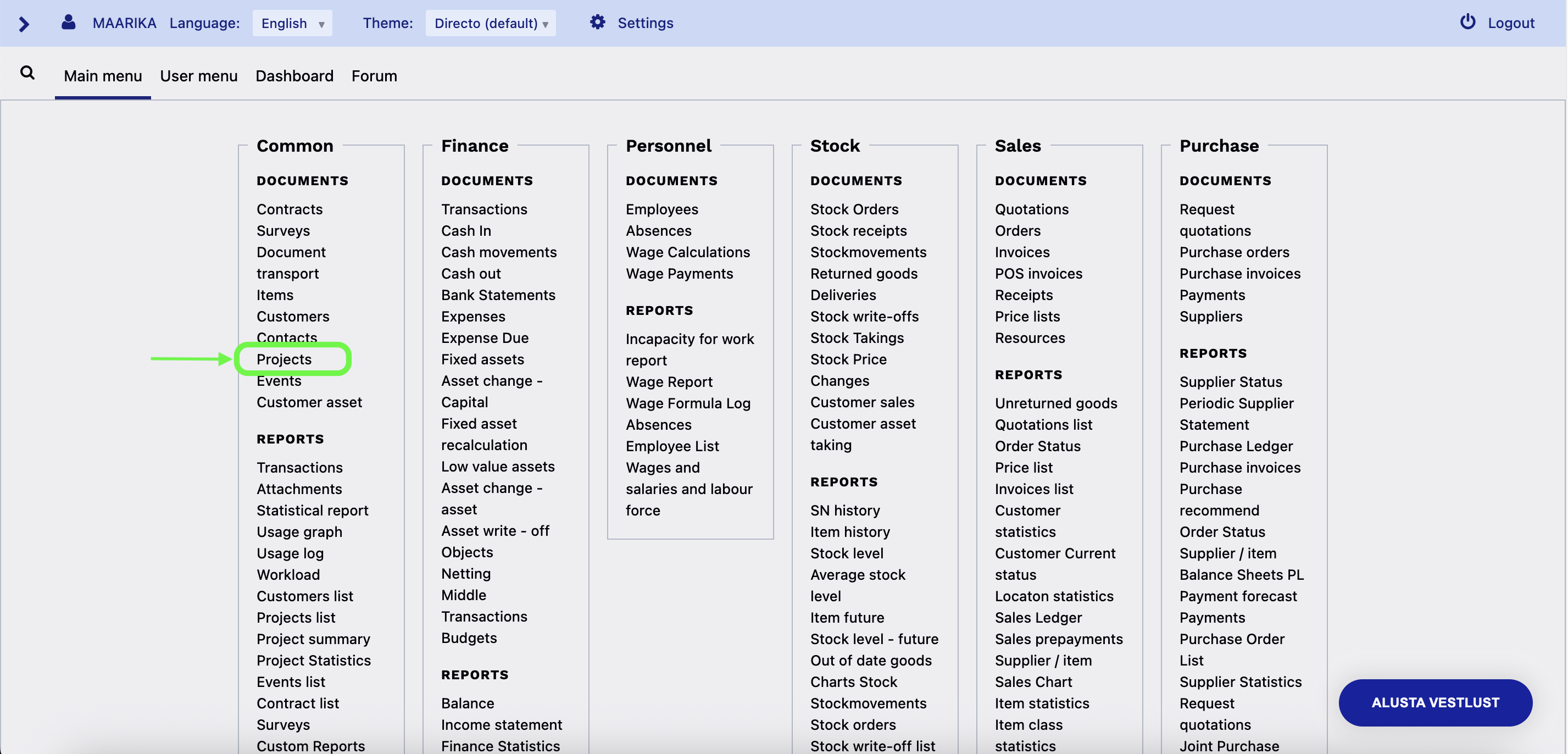
Follow up and repeat the previous process with VAT codes, Objects and Projects as well.
VAT codes are found under Finance settings:
Objects are found on the front page under Finance:
Projects are found on the front page under Common:
After the necessary data is uploaded the automated posting functionality can begin its work. If context is added manually to documents or reports the system creates automatic rules based on users' actions. Alternatively manual posting rules can be created which will be applied to documents immediately based on input.
Learn more about CostPocket's automated posting functionality and manual rule-making.